 PhotoCargo
Before your first transfer
PhotoCargo works with the System Photo Library on your Mac. You need macOS 26 or later and a destination folder on a local APFS-formatted drive. An attached external HDD or SSD is fine; exFAT, NTFS and network destinations are not currently supported.
In Finder, select the drive and open Get Info to check its format and free space. Formatting a drive erases its contents. Use a suitable existing drive, or back up anything important before changing its format.
Choose exactly what you want to keep
- Open PhotoCargo and choose Connect Photos. Allow access in the macOS prompt. If access was previously denied, enable it in System Settings → Privacy & Security → Photos.
- In New Transfer, choose Selected Photos. Open the picker, select the photos and videos you want, and add them to the transfer.
- Under Where to Save, choose a folder on your drive. Set a folder layout and filename style if you want.
- Choose Review Transfer. Check the selected-item count, destination and any warnings, then choose Copy and Verify.
- Wait for copying and verification to finish. Open the folder in Finder to inspect your files, and keep the transfer record for later checks.
Understand the result
One item in Photos can create more than one file: a Live Photo has a still image and a video, and a RAW + JPEG pair has two originals. Two destinations also increase the planned file count. This is why selected items and planned files can differ.
Keep Both is the default and adds a number when a filename exists. Skip leaves an existing file untouched and unverified; it does not count as a verified copy. Replace requires review and verifies the new copy before replacing the old file. A matching filename alone does not prove identical content.
The release build includes a free trial limit of 10 new items per transfer. Unlimited is a one-time in-app purchase. The recorded 15-item demonstration uses Unlimited.
Keep exploring
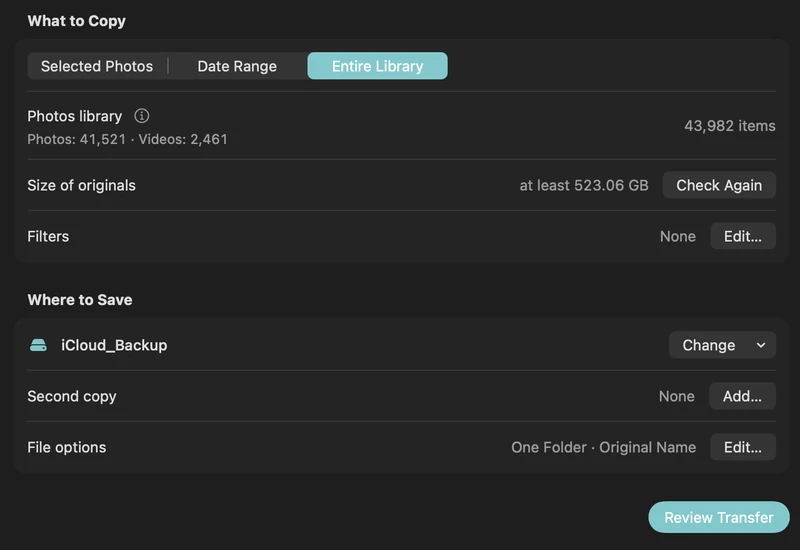
How to back up iCloud Photos to an external hard drive (Mac)
Copy your iCloud Photos originals to an external HDD or SSD on a Mac, even a library bigger than your Mac: PhotoCargo, Photos export, iCloud.com and moving the library.
Read the guide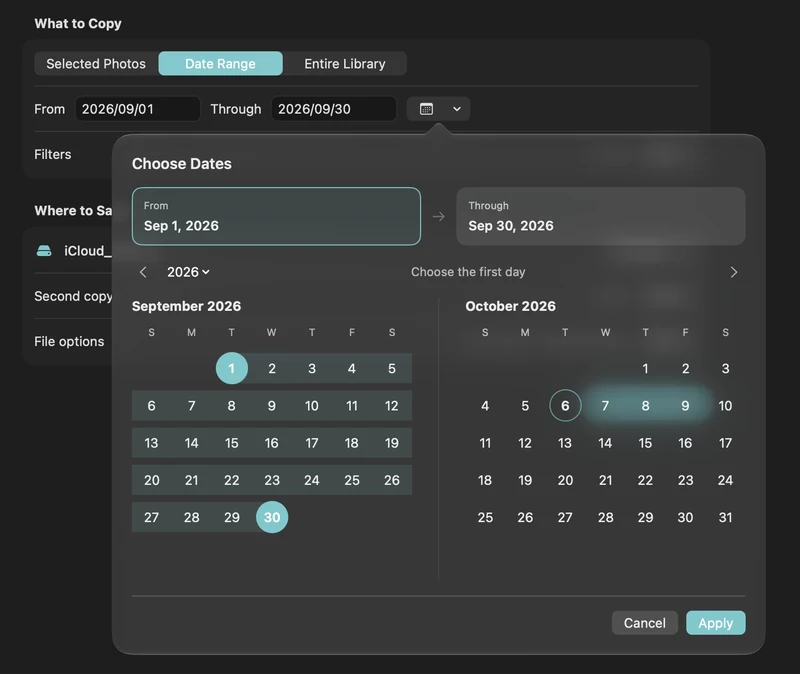
How to free up iCloud storage without losing your photos
Running out of iCloud storage? Move older photos and videos to an external drive safely: verified copies first, then delete in Photos, step by step.
Read the guide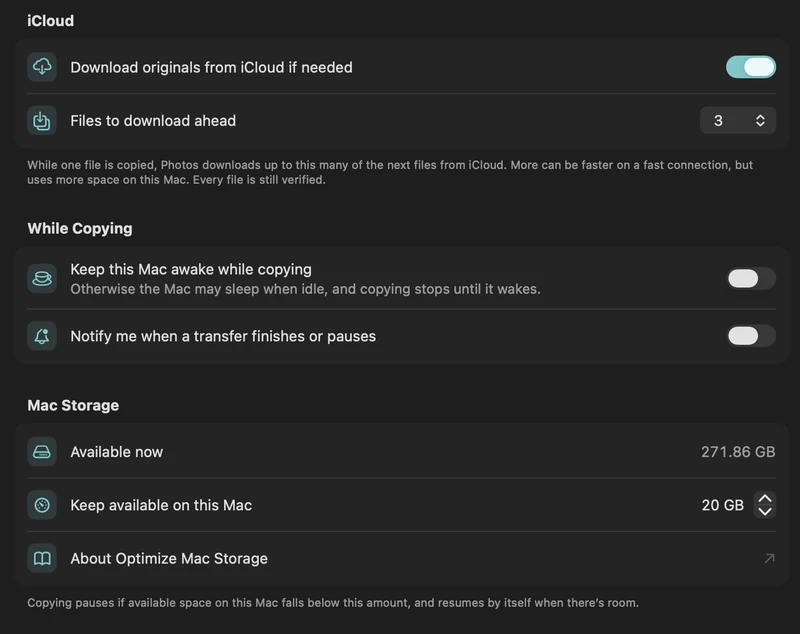
Copy a large iCloud library with limited Mac storage
Plan a transfer larger than your Mac’s free space with on-demand originals, a free-space reserve and controlled download-ahead.
Read the guide

