 PhotoCargo
Why photos fill up iCloud
iCloud Photos keeps the full-resolution original of every photo and video in iCloud, and that counts against your iCloud storage. Optimize Mac Storage saves space on your Mac, not in iCloud.
So making room in iCloud really means one of three things: buying more iCloud storage, removing items from your library, or both. If you choose to remove items, you need copies of your own first.
Step 1: Make verified copies of what you’ll remove
- Decide what to move out of iCloud. Older years are a natural choice: in PhotoCargo, choose Date Range and set the first and last day.
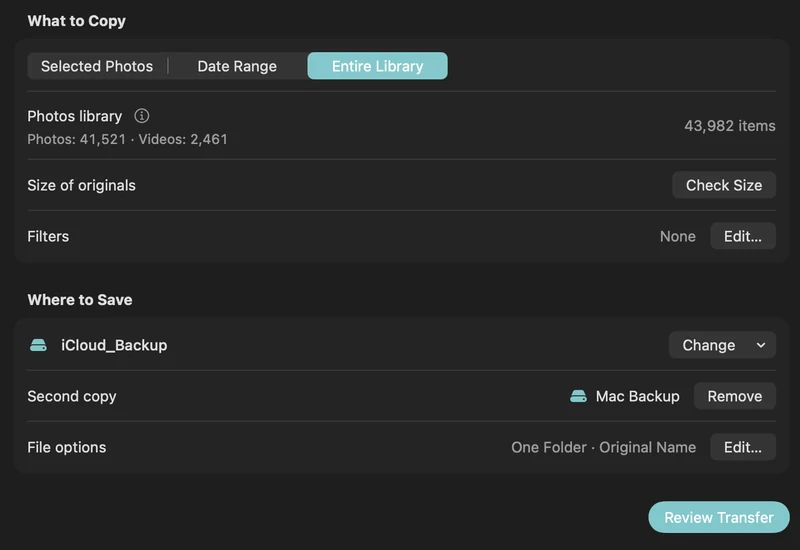
- Connect two APFS-formatted drives if you can. Under Where to Save, choose a folder on the first drive, then add a second destination on the other drive.
- Click Review Transfer, check the item count, then click Copy and Verify. Originals download from iCloud as needed.
- When the transfer finishes, make sure nothing is listed under Needs Attention. Fix or retry anything that is.
TipOpen a handful of files from each drive in the Finder. Spot-checking photos and a video or two takes a minute and gives you peace of mind.
Step 2: Keep the proof
Select the transfer in History and choose More › Save Recovery Backup… Keep that small file somewhere other than the drives. Later, Verify Files can re-check every copy against the checksums recorded when it was made.
Step 3: Remove items in Photos, carefully
ImportantWith iCloud Photos turned on, deleting a photo in Photos deletes it from iCloud and from every device signed in to your Apple Account.
ImportantDeleting also removes the edits you made in Photos. PhotoCargo copies originals only, so if you want your edited versions, export them with File › Export first.
- In Photos, select the same items you copied. For a date range, choose File › New Smart Album, set Date is in the range to the same first and last day, then select everything in that album.
- Delete them. They move to Recently Deleted for 30 days. If you’re over your iCloud storage limit, iCloud may remove them sooner, so make sure your copies are complete first.
- Check your iCloud storage in System Settings: click your name, then iCloud. It can take a while to update.
- Only empty Recently Deleted once you’re sure your copies are complete.
What to keep in mind
- PhotoCargo copies originals. Edits you made in Photos aren’t applied to the copies, so export edited versions with Photos too if you want them.
- Your copies are ordinary files. Albums, keywords and faces from Photos aren’t recreated.
- Shared Albums aren’t part of your library’s transfer, so they aren’t copied.
- Keep at least one drive in a different place. Two drives in the same drawer share the same risks.
Not ready to delete anything? A verified copy is still worth having. You can follow steps 1 and 2 and simply keep your iCloud library as it is.
Keep exploring
A simple 3-2-1 backup plan for your iCloud photo library
Protect a lifetime of photos with the 3-2-1 rule: three copies, two drives, one off-site. A practical Mac routine with iCloud Photos and PhotoCargo.
Read the guide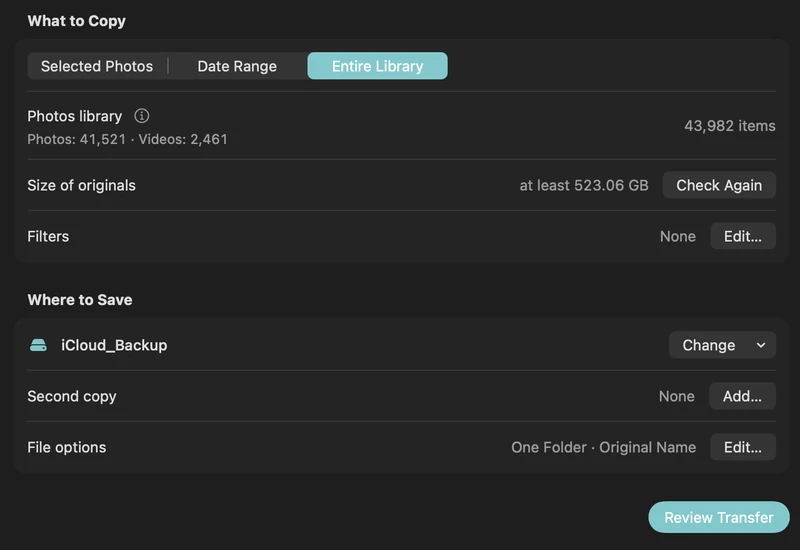
How to back up iCloud Photos to an external hard drive (Mac)
Copy your iCloud Photos originals to an external HDD or SSD on a Mac, even a library bigger than your Mac: PhotoCargo, Photos export, iCloud.com and moving the library.
Read the guide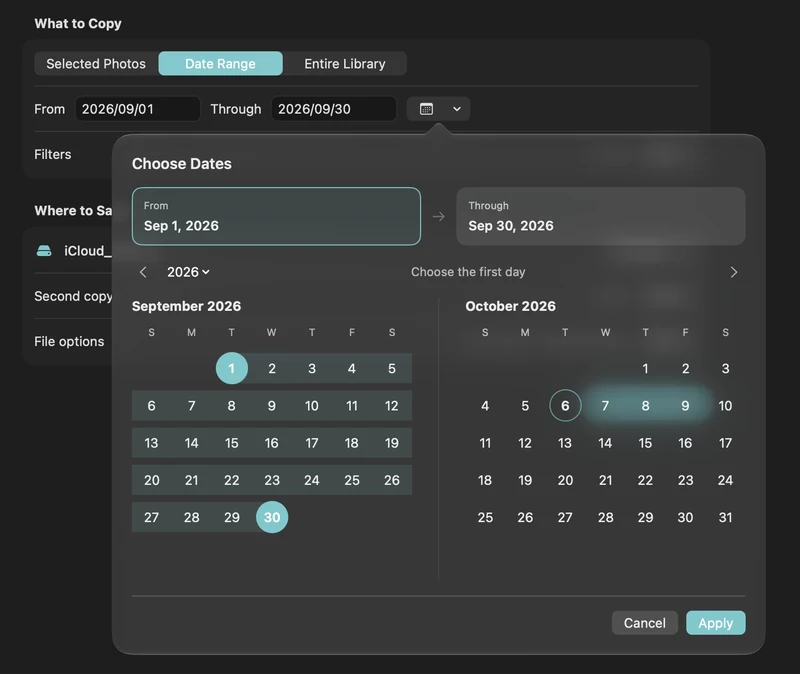
Export photos and videos by date range
Back up a holiday, a month or an older chapter of your Photos library with inclusive start and end dates.
Read the guide

