 PhotoCargo
The 3-2-1 rule
- 3 copies of everything that matters.
- 2 different drives or devices, so one failure can’t take everything.
- 1 copy off-site, away from fire, flood and theft.
For a photo library, that can be your iCloud Photos library, a drive at home and a second drive kept somewhere else.
Set it up with PhotoCargo
- Get two APFS-formatted drives with room to grow.
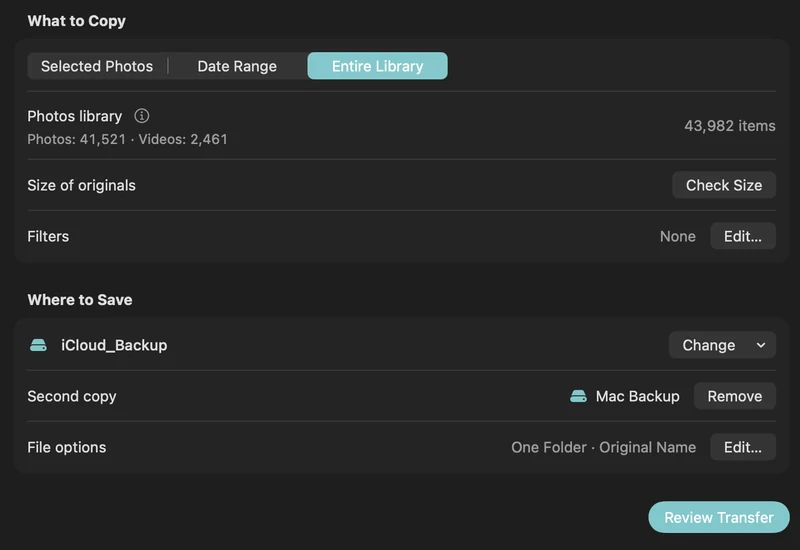
- In PhotoCargo, choose Entire Library and add both drives as destinations.
- Copy and Verify. When it finishes, save a recovery backup of the transfer.
- Take one drive somewhere else. Bring it back when it’s time to update.
A routine that takes minutes
| How often | What to do |
|---|---|
| Every month | Select the transfer in History and choose Find New Items to copy what’s new into the same folders. |
| Every few months | Run Verify Files to re-check every copy against its checksum. |
| Every year | Swap the off-site drive with the one at home, and consider replacing drives that are getting old. |
Where Time Machine fits
Time Machine backs up what’s stored on your Mac. With Optimize Mac Storage, many originals exist only in iCloud, so a Time Machine backup may not contain them. Keep Time Machine for your Mac, and keep separate copies of your originals for your photos.
Keep exploring
Make two copies on separate drives
Use PhotoCargo’s second destination to maintain two verified media copies in a single transfer workflow.
Read the guideHow to choose and format an external drive for your photo library
How much space you need, SSD or HDD, and how to format a drive as APFS in Disk Utility for backing up an iCloud Photos library on Mac.
Read the guide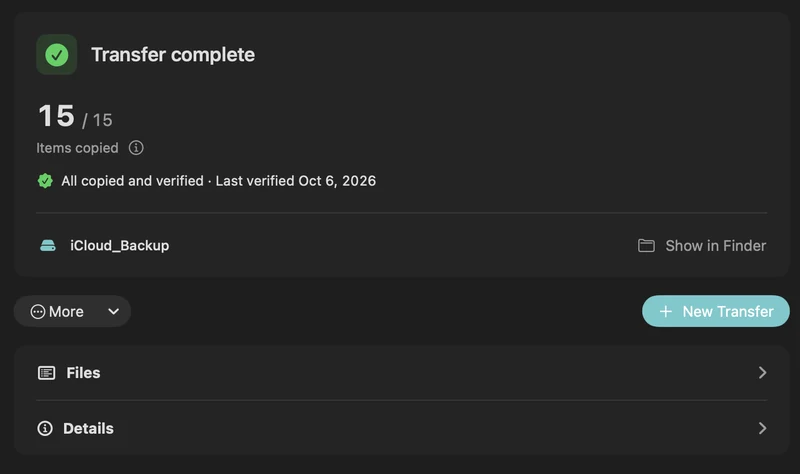
Verify, pause, resume and recover a transfer
Understand saved transfer records, checksum verification, retries and recovery backups in PhotoCargo.
Read the guide

