 PhotoCargo
Before you start
- A drive with room to grow. Check how much Photos uses in iCloud: System Settings › your name › iCloud › Photos. Choose a drive at least twice that size.
- APFS format for PhotoCargo. Most drives sold for Mac are, or can be erased as APFS in Disk Utility. See Choose and format an external drive.
- Time and power. Originals stored only in iCloud have to come down over your internet connection. A large library takes hours or days, so plug in the Mac and keep it awake.
- One Mac, signed in. PhotoCargo copies from the System Photo Library of the Mac it runs on, through Apple’s Photos framework. It never asks for your Apple Account password.
ImportantDon’t delete anything from Photos or iCloud until the copy is finished, verified and ideally duplicated on a second drive. With iCloud Photos on, a deletion anywhere is a deletion everywhere.
Why most guides tell you to download everything first
With Optimize Mac Storage turned on (Photos › Settings › iCloud), your Mac keeps smaller versions of your photos and videos, and the full-resolution originals stay in iCloud. If space runs low, a Live Photo may be kept on the Mac as a still image only; it plays in full when you open it.
That’s why the usual advice is to switch to Download Originals to this Mac, wait for the whole library to arrive, then export or copy it. It works, but only if the library fits on your Mac, and it turns a backup into a multi-day project. Copying the Photos library folder or relying on Time Machine without doing this first gives you previews, not originals.
Method 1: PhotoCargo (originals stream straight to the drive)
- Download PhotoCargo from the Mac App Store, open it and click Connect Photos. Allow access to all photos when macOS asks.
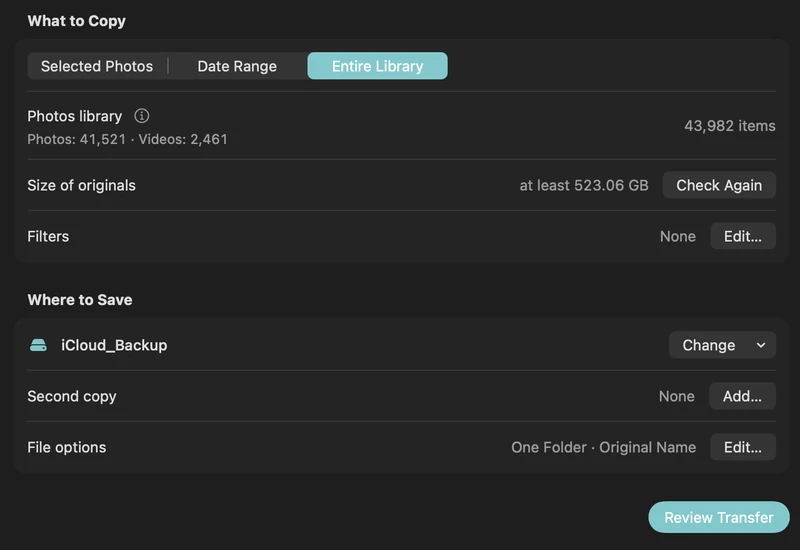
- Connect your APFS drive. In New Transfer, choose Entire Library, or Date Range to start with a few years, or Selected Photos to try it with a handful.
- Under Where to Save, click Choose… and pick a folder on the drive. Pick folder and file naming if you like: by year and month, by album, original names or date taken.
- Click Review Transfer. PhotoCargo shows how many items and files will be copied and warns if the drive may be short on space. Click Copy and Verify.
- Leave it running. Each original is downloaded from iCloud as it’s needed, written to your drive, read back and compared with its checksum. If the internet drops or the drive is unplugged, the transfer waits and continues. Quit and resume whenever you like.
- When it finishes, open the folder in the Finder. Anything that couldn’t be copied is listed under Needs Attention with the reason.
TipThe free version copies up to 10 new items per transfer, enough to see how it works with your own library. Unlimited is a one-time purchase. Verifying, repairing and recovery backups are never limited.
Next month, select the transfer in History and choose Find New Items: only what’s new since last time is copied into the same folders. Read Verify, pause, resume and recover a transfer for what happens when things go wrong.
Method 2: Export Unmodified Original in Photos
- Select the photos and videos (a few hundred at a time works best). Photos downloads any original that isn’t on the Mac during the export; for thousands of items, many people first choose Photos › Settings › iCloud › Download Originals to this Mac, which needs room for the whole library.
- Choose File › Export › Export Unmodified Original.
- Choose a folder on your drive and click Export. Live Photos arrive as a photo plus a .mov file.
Nothing checks the exported files, an interrupted export starts over, and next time you have to work out yourself what’s new. See Export original photos from Photos on Mac.
Method 3: iCloud.com
Sign in at iCloud.com, open Photos, select items and click Download. Apple lets you select up to 1,000 items at a time, usually delivered as a ZIP file, and the More menu offers Unmodified Originals. It’s practical for a trip, not for 40,000 photos.
Method 4: Move the Photos library to the drive
Apple’s own guide for a Mac that has run out of space is to move the whole Photos library to an external drive and keep using it there. That solves the space problem, but it is still one copy managed by Photos: with Optimize Mac Storage the originals may still live only in iCloud, and the drive must stay connected or Photos creates a new empty library. Read Move your Photos library to an external drive, or back it up? before choosing this route.
Check your copy
- Open a few photos and a video from the drive in the Finder. A Live Photo should be two files: a photo and a short video.
- In PhotoCargo, the transfer summary lists every file as verified. Re-run Verify Files any time to compare the drive against the recorded checksums.
- Keep a second copy on another drive, ideally somewhere else. See A simple 3-2-1 backup plan.
What a copy does and doesn’t contain
PhotoCargo copies originals as they were captured: HEIC or JPEG photos, MOV or MP4 videos, both files of a RAW + JPEG pair and both parts of a Live Photo, with the date taken written into each file’s dates. Edits you made in Photos stay in Photos, and albums, keywords and faces aren’t recreated; you get ordinary files you can open anywhere. Details in Live Photos, RAW, HEIC and edits.
Keep exploring
How to download all your iCloud photos at once
Four ways to download your whole iCloud Photos library: Photos on Mac, iCloud.com in batches of 1,000, Apple’s data copy, and a verified copy straight to an external drive.
Read the guide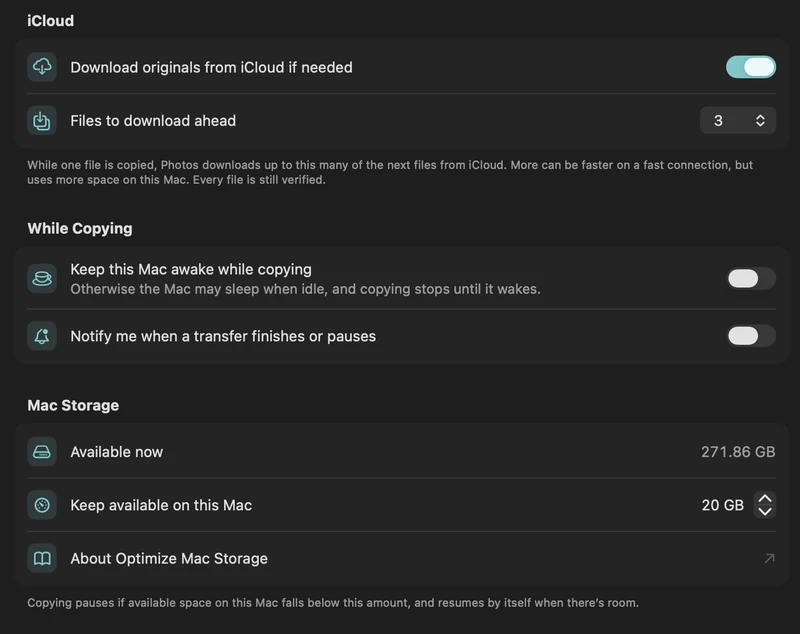
Copy a large iCloud library with limited Mac storage
Plan a transfer larger than your Mac’s free space with on-demand originals, a free-space reserve and controlled download-ahead.
Read the guide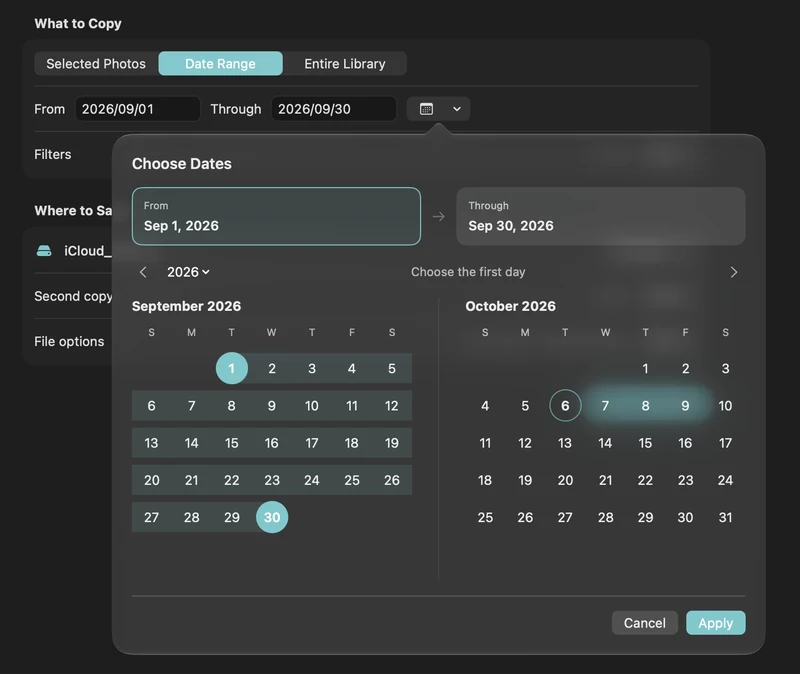
How to free up iCloud storage without losing your photos
Running out of iCloud storage? Move older photos and videos to an external drive safely: verified copies first, then delete in Photos, step by step.
Read the guide

