
Deletions sync too.
Delete a photo on your iPhone and it disappears from your iPad, your Mac and iCloud. Recently Deleted keeps it for 30 days; after that it’s gone. A copy on your own drive stays exactly where you put it.
iCloud Photos → Your drive
PhotoCargo copies the full-resolution originals of your photos and videos from iCloud Photos to an external HDD or SSD, even when Optimize Mac Storage left only small versions on your Mac. Every file is verified, and a transfer picks up exactly where it stopped.
Free to try · macOS Tahoe 26 or later · APFS-formatted drives
 PhotoCargo
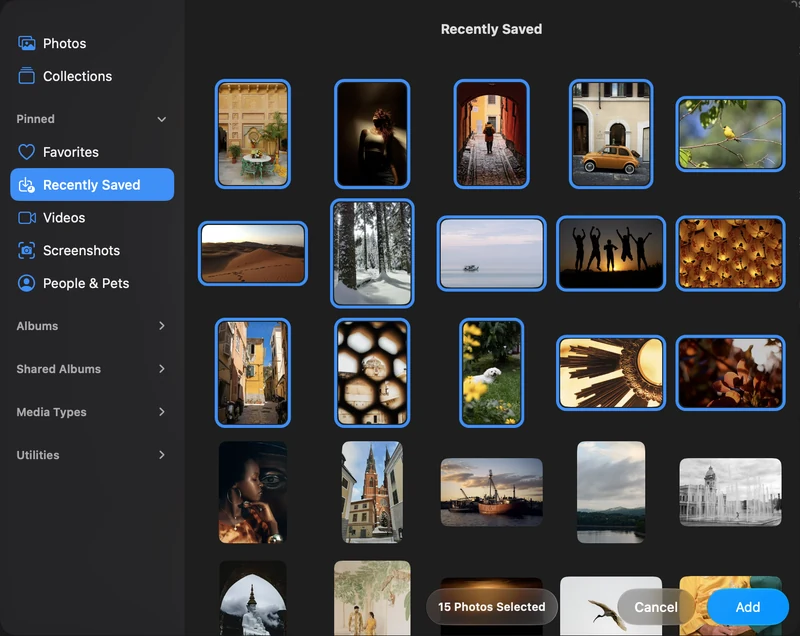
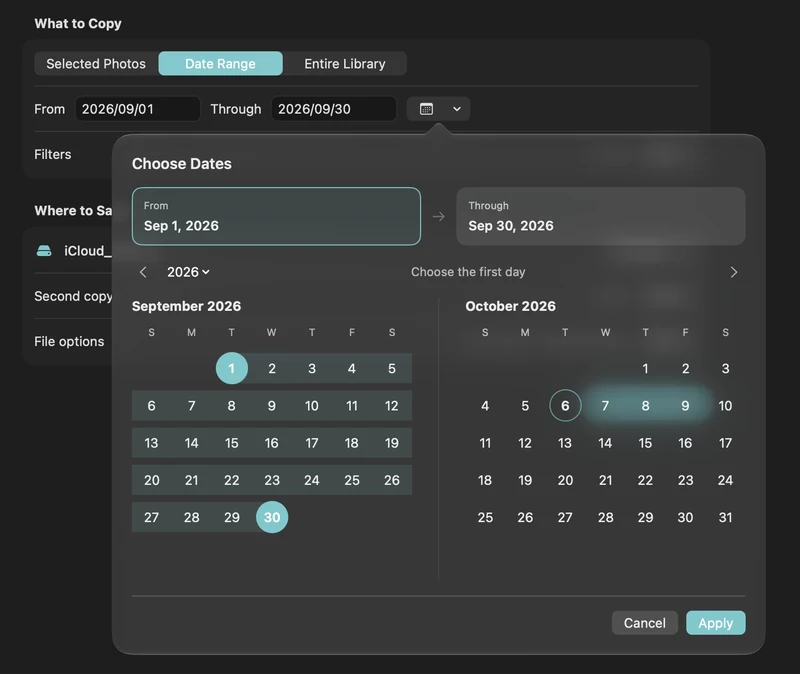
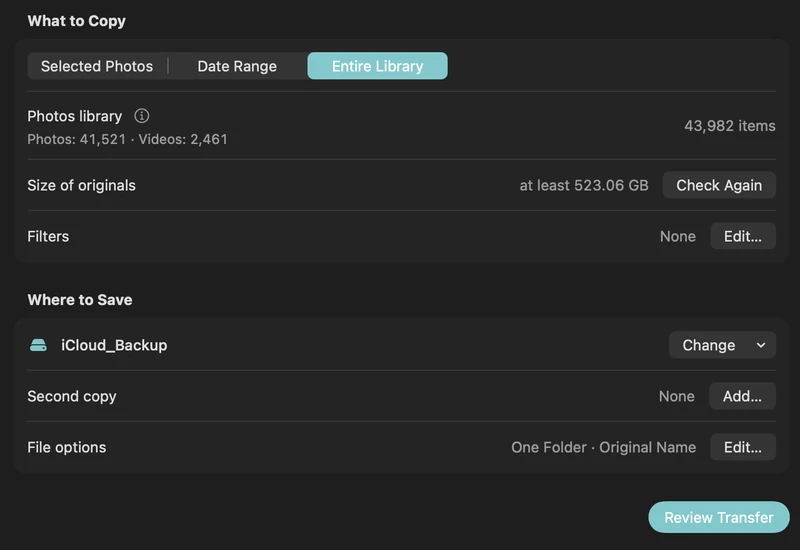
Choose photos, a date range, or everything.
Photos provides originals from iCloud as needed.
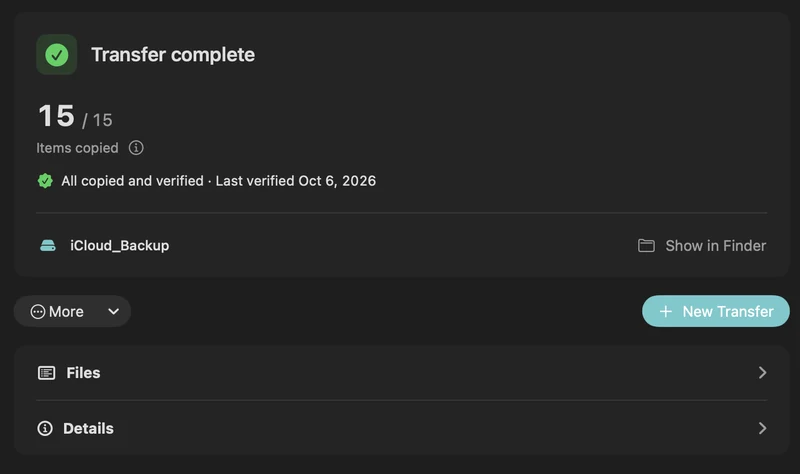
Each saved file is read back and checksum-checked.
An independent copy. Your Photos library stays unchanged.
How it works
Selected photos, a date range or your entire iCloud Photos library.
Any folder on an APFS-formatted HDD or SSD. Add a second drive if you like.
Originals download from iCloud as needed, go straight to your drive and are checked one by one.
Choose what to copy
The same simple transfer. Three ways to choose.
Why you need a copy of your own
Delete a photo on your iPhone and it disappears from your iPad, your Mac and iCloud. Recently Deleted keeps it for 30 days; after that it’s gone. A copy on your own drive stays exactly where you put it.
With Optimize Mac Storage, your Mac keeps smaller versions while the full-resolution originals live only in iCloud. Copying the Photos library folder, or a Time Machine backup, can miss them.
Photos’ export downloads originals one batch at a time, iCloud.com stops at 1,000 items per download, and nothing checks that every file arrived intact.
How a transfer flows
Photos downloads each original photo or video from iCloud as PhotoCargo requests it. PhotoCargo writes the file to your drive, reads it back and checks it. You can set a free-space reserve for your Mac; Photos manages its own cache, so some temporary Mac storage is still needed.
Built for the real world
Each file is read back from the drive and compared with a checksum taken while copying. Verify Files checks everything again whenever you like.
Full-resolution photos and videos, RAW + JPEG pairs and both halves of every Live Photo, with their original names and capture dates.
Originals download from iCloud a few at a time and go straight to your drive. If your Mac runs low on space, copying pauses and resumes by itself when there’s room.
Quit, restart or put your Mac to sleep. A transfer picks up at the first unfinished item, and finished files are never copied again.
If the internet drops, the transfer waits and retries for about 12 hours. If a drive is unplugged, it continues by itself when you reconnect it while PhotoCargo is open.
Make a second copy on another drive in the same pass, each with its own verification status.
Find New Items copies only what’s new since last time, into the same folder, so your archive grows with your library.
Folders by year and month or named after albums. Original file names, or names from the date and time taken.
PhotoCargo only reads your library and never changes or deletes anything. No account, no ads, no tracking.
iCloud → PhotoCargo → HDD / SSD
There’s no need to turn on “Download Originals to this Mac” and wait for the whole library to fit. PhotoCargo asks Photos for each original as it’s needed and writes it straight to your drive, keeping a free-space reserve on your Mac that you choose.
Photos manages its own iCloud cache, so some temporary space on your Mac is still needed.
Plan a large transferFind your situation
Move older years to a drive, verify them, then free up space without losing a single photo.
Read the guideA library can be larger than the free space on your Mac: for example, 500 GB of media with 50 GB free. Photos still needs temporary space, so plan your reserve and watch available storage.
Read the guideGet every original onto your drive first, then turn off iCloud Photos the safe way.
Read the guideUnderstand what iCloud protects and what it doesn’t, then set up a 3-2-1 plan in an afternoon.
Read the guideYour iPhone photos reach your drive through Photos on your Mac, as HEIC, Live Photo and RAW originals.
Read the guideCopy only what’s new each month, re-verify old copies, and keep a second drive off-site.
Read the guideCompared with exporting by hand
Photos can export unmodified originals, and for a handful of pictures that’s perfect. For a whole iCloud library, the details start to matter.
| Why not just use File › Export in Photos? | PhotoCargo | Photos › Export Unmodified Original |
|---|---|---|
| Full-resolution originals | ||
| Live Photo videos and RAW files | ||
| Checks every copy with a checksum | ||
| Pauses and resumes after interruptions | ||
| Copies to two drives at once | ||
| Copies only what’s new next time |
Pricing
Free
One-time purchase
Unlimited is a one-time in-app purchase, not a subscription. The Mac App Store shows the price in your country or region.
 macOS Tahoe 26 or later · APFS-formatted drives
Guides
Copy your iCloud Photos originals to an external HDD or SSD on a Mac, even a library bigger than your Mac: PhotoCargo, Photos export, iCloud.com and moving the library.
Read the guideFour ways to download your whole iCloud Photos library: Photos on Mac, iCloud.com in batches of 1,000, Apple’s data copy, and a verified copy straight to an external drive.
Read the guideRunning out of iCloud storage? Move older photos and videos to an external drive safely: verified copies first, then delete in Photos, step by step.
Read the guideYes. PhotoCargo asks Photos for one original at a time; Photos downloads it from iCloud, and PhotoCargo writes it straight to your drive and verifies it. You never need to turn on “Download Originals to this Mac” or make room for the whole library. Photos still uses some temporary space, and you choose how much free space PhotoCargo keeps on your Mac. See Back up iCloud Photos to an external hard drive.
No. PhotoCargo asks Photos for each original as it’s needed and writes it straight to your drive, so you don’t have to download the whole library first. Photos still needs some temporary space, and you can choose how much free space PhotoCargo keeps on your Mac. If space runs low, copying pauses and continues by itself when there’s room. See Copy a large iCloud library with limited Mac storage.
With Optimize Mac Storage on, your Mac often holds only a smaller version of each photo, and some methods copy exactly that: dragging thumbnails, copying the Photos library folder, or a Time Machine backup of it. PhotoCargo always asks Photos for the full-resolution original and downloads it from iCloud first, so every copy is the real file. If an original truly isn’t available, PhotoCargo tells you instead of quietly copying a preview.
No. PhotoCargo never deletes anything, in Photos or in iCloud. Once your copies are verified, ideally on two drives, you can decide for yourself what to remove in Photos. Deleting there removes items from iCloud and every device. Follow Free up iCloud storage without losing your photos step by step.
PhotoCargo copies originals as they were captured. Edits you made in Photos stay in Photos and aren’t applied to the copies. If an original is missing, PhotoCargo tells you and can copy the version Photos has instead. To keep edited versions as well, export them with File › Export in Photos. See What your backup contains.
PhotoCargo reads your Photos library and never changes or deletes anything in it. There’s no PhotoCargo account, tracking or advertising, and your photos never go to our servers.
Read the privacy policy
PhotoCargo for Mac is free to download on the Mac App Store, with every feature included.
macOS Tahoe 26 or later · APFS-formatted drives