 PhotoCargo
How it works
PhotoCargo is a Mac app. It copies from the Photos library on your Mac. When your iPhone and your Mac use iCloud Photos with the same Apple Account, everything you take on your iPhone appears in Photos on the Mac, even if only smaller versions are stored there.
PhotoCargo asks Photos for the full-resolution original of each item, which Photos downloads from iCloud when needed, and writes it to your drive.
Step 1: Bring your iPhone photos to your Mac
- On your iPhone, open Settings, tap your name, then iCloud › Photos, and turn on Sync this iPhone.
- On your Mac, open Photos, choose Photos › Settings › iCloud, and turn on iCloud Photos, signed in with the same Apple Account.
- Wait until your recent photos appear in Photos on the Mac. The first sync of a large library can take a while.
TipDon’t use iCloud Photos? Connect your iPhone to your Mac with a cable, open Photos, select the iPhone in the sidebar and import the photos you want. Then follow Step 2.
Step 2: Copy them to your drive
- Connect an APFS-formatted external drive.
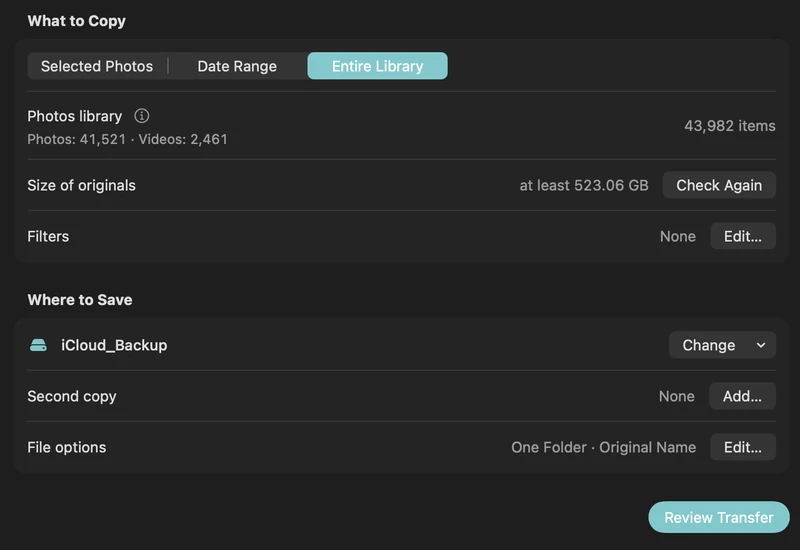
- Open PhotoCargo, connect Photos, and choose Entire Library, or Date Range for a period such as last year.
- In Settings, make sure “Download originals from iCloud if needed” is on.
- Under Where to Save, choose a folder on your drive, then click Review Transfer and Copy and Verify.
Keep it up to date
- Next month, select the transfer in History and choose Find New Items. Only new photos are copied, into the same folder.
- Live Photos keep both their photo and their video, and RAW photos from your iPhone are copied as originals.
- Keep a second copy on another drive for real peace of mind.
Keep exploring
How to back up iCloud Photos to an external hard drive (Mac)
Copy your iCloud Photos originals to an external HDD or SSD on a Mac, even a library bigger than your Mac: PhotoCargo, Photos export, iCloud.com and moving the library.
Read the guide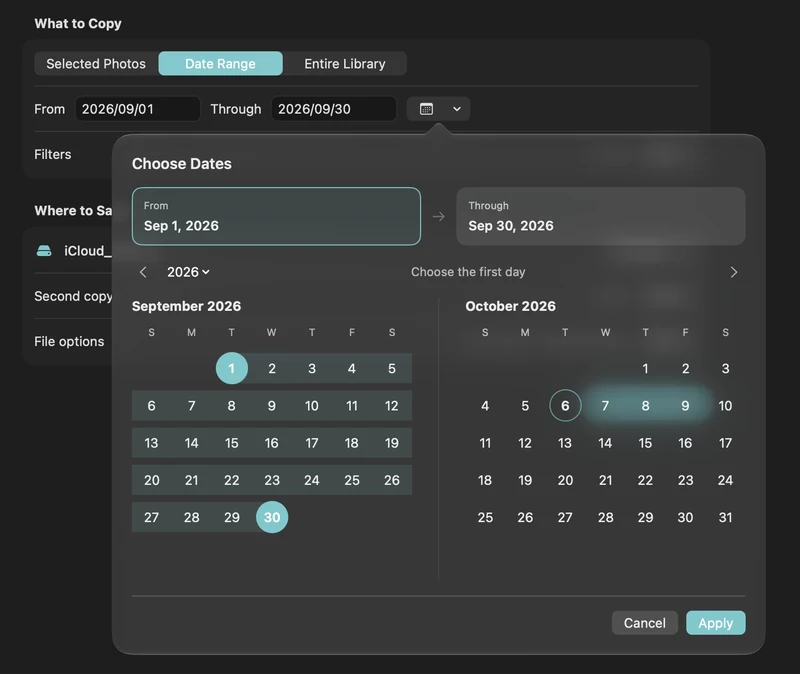
How to free up iCloud storage without losing your photos
Running out of iCloud storage? Move older photos and videos to an external drive safely: verified copies first, then delete in Photos, step by step.
Read the guide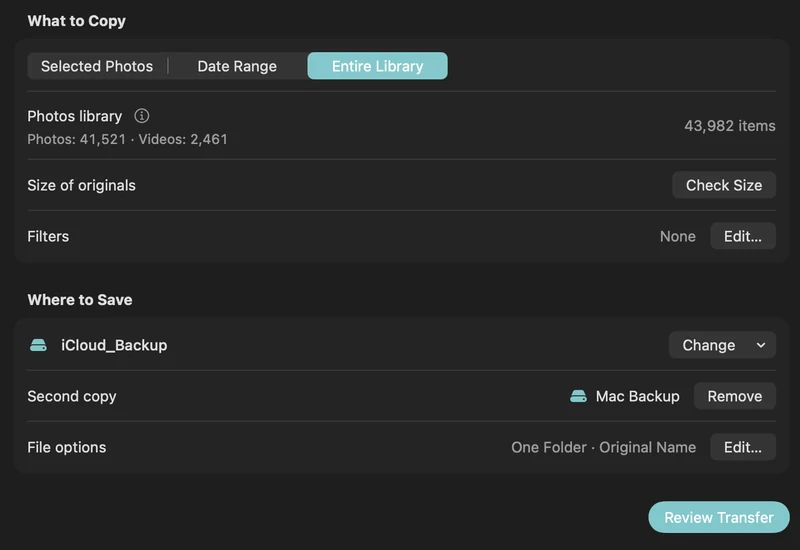
A simple 3-2-1 backup plan for your iCloud photo library
Protect a lifetime of photos with the 3-2-1 rule: three copies, two drives, one off-site. A practical Mac routine with iCloud Photos and PhotoCargo.
Read the guide

