 PhotoCargo
What verification tells you
PhotoCargo computes checksums while copying and reads destination files back to compare them. A verified result means the saved file matched the bytes copied at that time. It is not a guarantee against future damage or proof that an already-damaged original was healthy.
Open a transfer from History and use Verify Files to check copies again. Read the details of warnings and failed items; do not treat a partially completed transfer as a complete backup.
Continue without starting over
- Use Pause when you need to stop. Let the app finish pausing before disconnecting a drive.
- When you are ready, reconnect the same destination and open the saved transfer in History.
- Choose Resume or Retry Unfinished as appropriate. PhotoCargo retains completed, verified files and continues outstanding work. An interrupted file restarts from its beginning; resume does not continue at a byte offset.
- If a folder moved or a drive was renamed, use Reconnect Folder and select the original destination folder.
- For missing or changed copies, review the Repair plan before starting. Keep your Photos library accessible if replacement source files are needed.
Keep the records that make recovery possible
Transfer records are stored privately on your Mac. Save Recovery Backup exports those records to a location you choose so you can restore them later. The recovery file contains metadata such as filenames, Photos identifiers and checksums; it does not contain the photos and videos themselves.
Keep the recovery file private and keep the media copies separately. Restoring a recovery record does not restore missing original media by itself. The app’s ordinary media folder remains useful even when you only want to browse the files in Finder.
Keep exploring
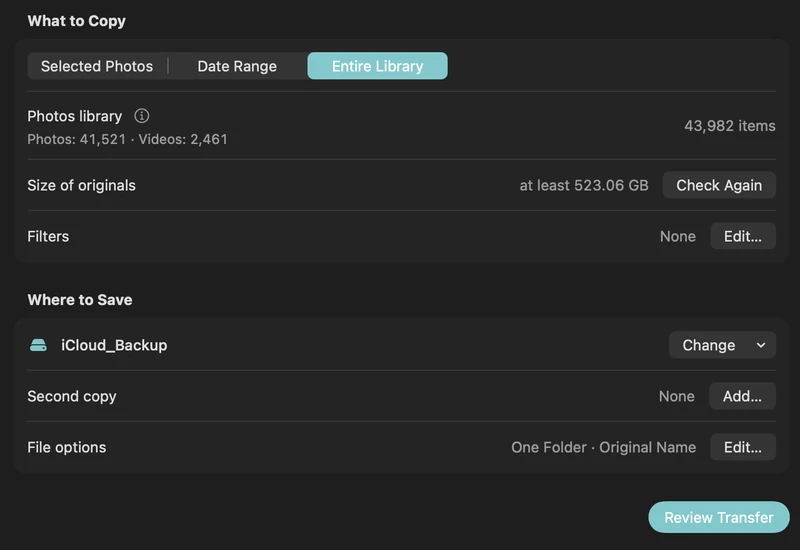
How to back up iCloud Photos to an external hard drive (Mac)
Copy your iCloud Photos originals to an external HDD or SSD on a Mac, even a library bigger than your Mac: PhotoCargo, Photos export, iCloud.com and moving the library.
Read the guide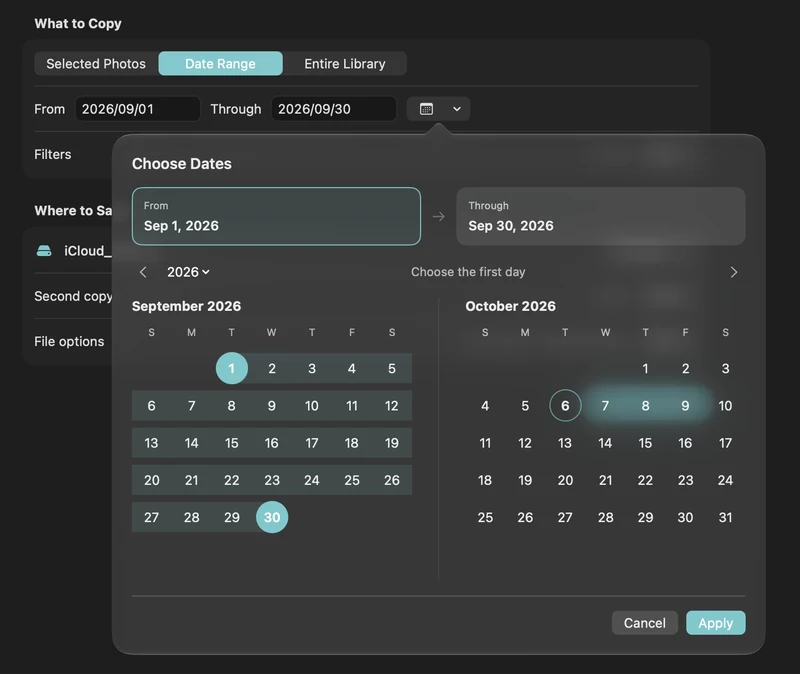
How to free up iCloud storage without losing your photos
Running out of iCloud storage? Move older photos and videos to an external drive safely: verified copies first, then delete in Photos, step by step.
Read the guide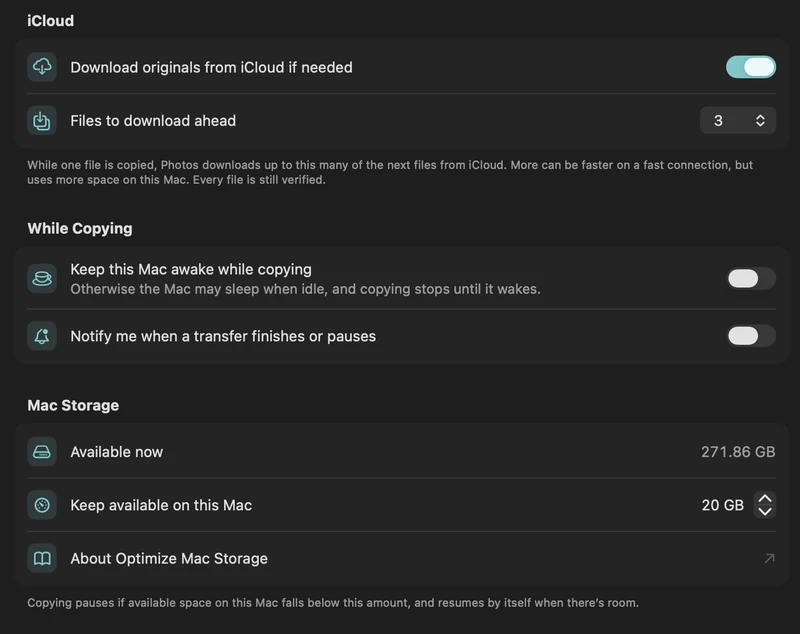
Copy a large iCloud library with limited Mac storage
Plan a transfer larger than your Mac’s free space with on-demand originals, a free-space reserve and controlled download-ahead.
Read the guide

