 PhotoCargo
How much space do you need?
With iCloud Photos, the most useful number is how much iCloud storage Photos uses: open System Settings, click your name, then iCloud. On a Mac with Optimize Mac Storage, the Photos library on the Mac is much smaller than your real library, so don’t go by that.
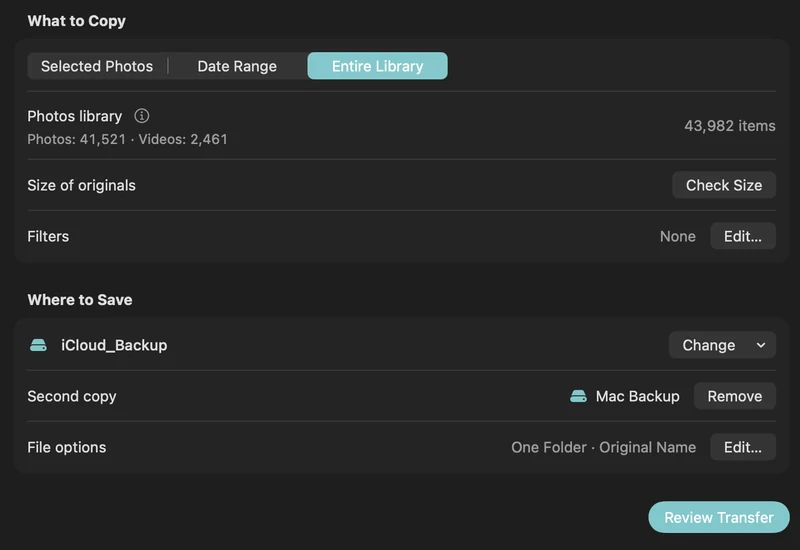
Choose a drive at least twice that size. Libraries grow every year, and you may want room for a second archive or other files. PhotoCargo’s review also warns you when a drive may not have enough room.
SSD or HDD?
- SSD: fast, silent and much more tolerant of bumps and drops. Ideal if the drive travels or you copy often.
- HDD: much cheaper per terabyte, a good fit for a large archive that mostly stays on a shelf.
- Either way: every drive can fail eventually. Two copies on two drives matter more than which kind you buy.
Check the format
PhotoCargo writes to drives formatted as APFS, the standard format for Mac. Mac OS Extended, exFAT, NTFS and network drives aren’t supported.
- Connect the drive and select it in the Finder sidebar.
- Choose File › Get Info.
- Look at Format. If it says APFS, you’re ready.
Format a drive as APFS
ImportantErasing a drive deletes everything on it. Copy anything you want to keep to another drive first.
- Open Disk Utility (in Applications › Utilities).
- Choose View › Show All Devices, then select the external drive itself, not a volume inside it.
- Click Erase. Give it a name, choose APFS as the format and GUID Partition Map as the scheme.
- Click Erase and wait until it finishes.
TipChoose APFS (Encrypted) if you want the drive protected by a password. PhotoCargo works with encrypted APFS drives too.
Look after your drives
- Label each drive with what it holds and when it was last updated.
- Keep one drive somewhere else, such as at work or with family.
- Eject drives before unplugging them, and run Verify Files from time to time.
Keep exploring
A simple 3-2-1 backup plan for your iCloud photo library
Protect a lifetime of photos with the 3-2-1 rule: three copies, two drives, one off-site. A practical Mac routine with iCloud Photos and PhotoCargo.
Read the guideMake two copies on separate drives
Use PhotoCargo’s second destination to maintain two verified media copies in a single transfer workflow.
Read the guide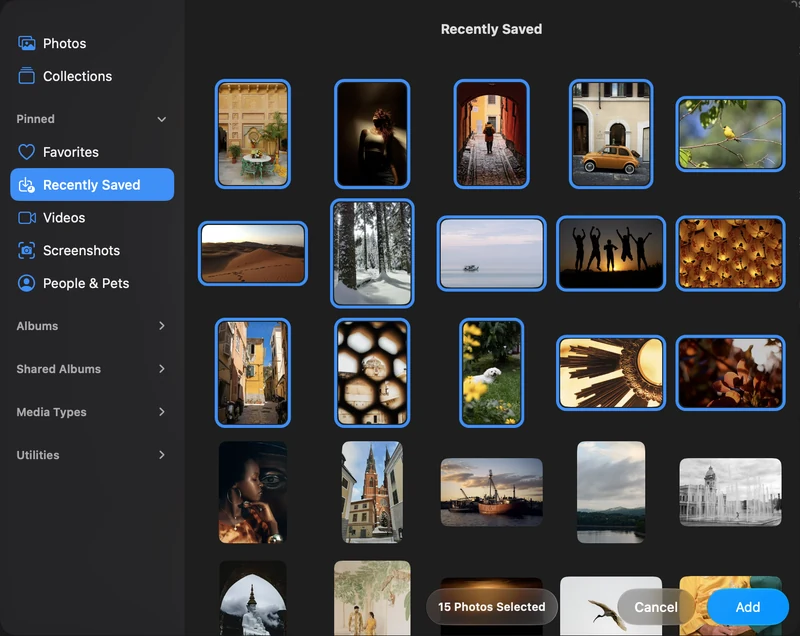
Back up selected photos and videos on your Mac
Connect Apple Photos, choose individual items and make your first verified copy to an APFS drive.
Read the guide

