 PhotoCargo
Make a manageable archive
A date range is useful when you want a trip, a month or a set of older years on a separate drive. It also gives a large backup a scope you can inspect before starting.
PhotoCargo uses the capture date recorded in Photos. This may differ from a file’s import date or its Finder modification date. Missing or incorrect capture dates can affect whether an item appears in the range.
Set both ends of the range
- Choose Date Range in New Transfer.
- Open the calendar and select a start date and an end date. The range includes both days, using the calendar’s time zone.
- Apply the range. Add any supported media filters you need, then choose the destination folder.
- Review the selected items, file count and available size information. Correct the dates if the selection is not what you expected.
- Choose Copy and Verify. When it completes, open the folder and review any items that need attention.
Keep repeated backups organized
Choose original filenames, a custom filename pattern, or the capture-date filename style. Date-based names include milliseconds at the precision recorded by Photos, plus an item number for identical timestamps. Missing capture dates fall back to the original filename. Extensions remain unchanged.
You can use the app’s folder layouts to organize files. Keep the transfer record so that you can verify, resume or repair the same transfer later. Starting an unrelated new transfer with overlapping dates may create extra copies, depending on your existing-file setting.
Keep exploring
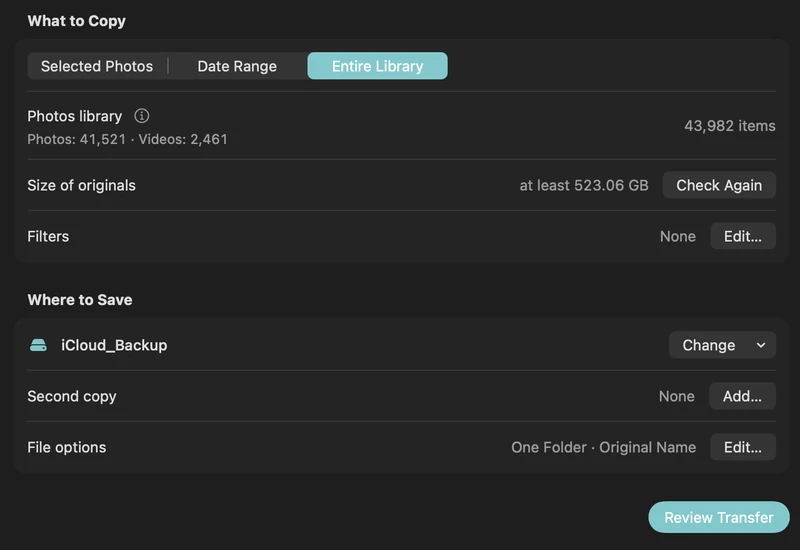
How to back up iCloud Photos to an external hard drive (Mac)
Copy your iCloud Photos originals to an external HDD or SSD on a Mac, even a library bigger than your Mac: PhotoCargo, Photos export, iCloud.com and moving the library.
Read the guide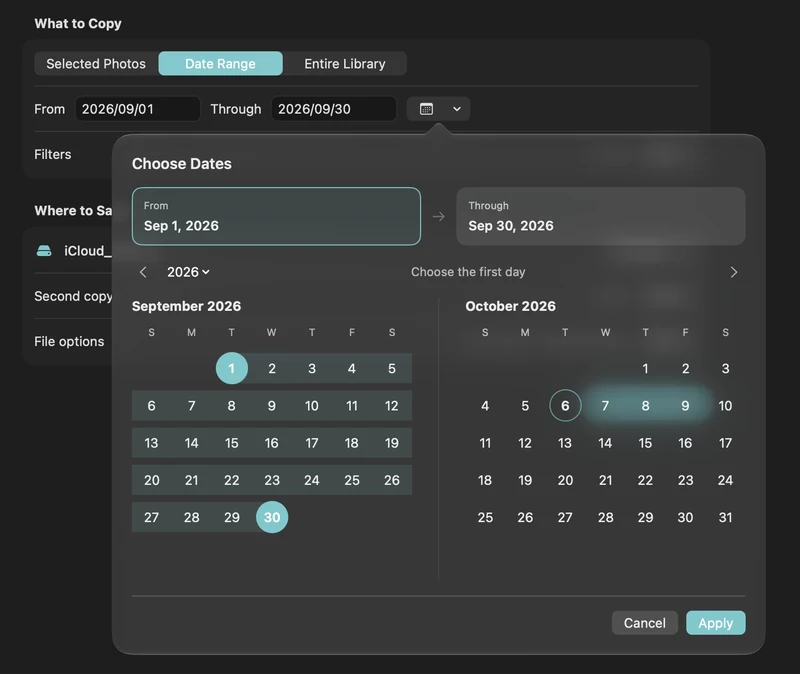
How to free up iCloud storage without losing your photos
Running out of iCloud storage? Move older photos and videos to an external drive safely: verified copies first, then delete in Photos, step by step.
Read the guide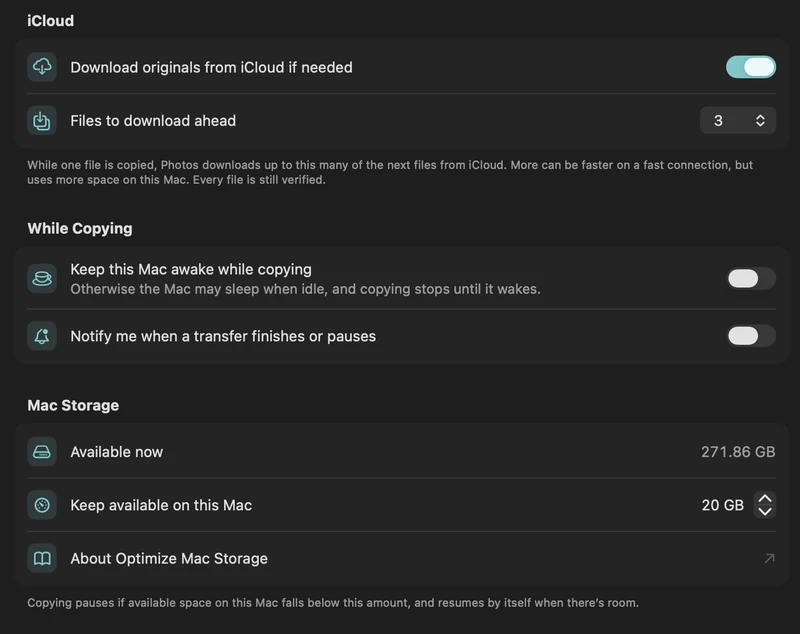
Copy a large iCloud library with limited Mac storage
Plan a transfer larger than your Mac’s free space with on-demand originals, a free-space reserve and controlled download-ahead.
Read the guide

