 PhotoCargo
Why people turn iCloud Photos off
With Optimize Mac Storage enabled, some full-resolution originals may be stored only in iCloud. An optimized local copy is not a full-resolution backup. Download and verify independent copies before deleting any originals. Turning off device sync alone does not delete the originals in iCloud.
Step 1: Make a verified copy of the originals
- Connect an APFS-formatted external drive with room for your whole library, ideally two drives.
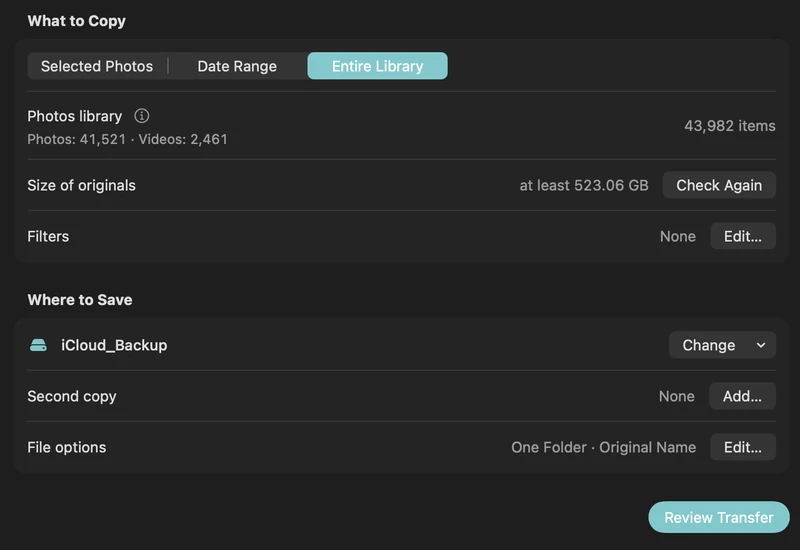
- Open PhotoCargo, connect Photos and choose Entire Library. Add the second drive as a second destination if you have one.
- Click Review Transfer, then Copy and Verify. Originals are downloaded from iCloud as needed and verified on the drive. A big library takes a while; you can pause and resume.
- When it finishes, confirm nothing is left under Needs Attention, and spot-check a few files in the Finder.
TipSave a recovery backup of the transfer (History › More › Save Recovery Backup…) away from the drive. It lets you re-verify or repair the copy years from now.
Step 2: Decide what your Mac should keep
If you want to keep using Photos on this Mac with your whole library, turn on Download Originals to this Mac in Photos › Settings › iCloud and wait for the download to finish before turning sync off. If the library won’t fit, you can move the Photos library to an external drive first. If you only need the files on your backup drive, skip this.
Step 3: Turn off iCloud Photos on the Mac
- Open System Settings, click your name, then iCloud, then Photos.
- Turn off Sync this Mac. (Clearing the iCloud Photos checkbox in Photos › Settings › iCloud does the same.)
- Photos offers two choices. Download keeps a copy of your iCloud photos and videos on this Mac. Remove from Mac doesn’t keep the items that aren’t fully downloaded. Pick Download if this Mac is meant to hold the library; pick Remove from Mac if your backup drive is the copy you’re keeping.
Turning iCloud Photos off on one Mac doesn’t delete anything from iCloud. Your library remains in iCloud and on your other devices that still use iCloud Photos.
Turning off the service and deleting the iCloud copy
ImportantThe account-level “Turn Off and Delete from iCloud” action in iCloud storage settings schedules your iCloud photos and videos for deletion after 30 days. This is separate from stopping sync on individual devices. Apple provides an undo option during that period. Complete and verify your independent backup before choosing deletion.
To stop syncing one iPhone or iPad, go to Settings › your name › iCloud › Photos and turn off Sync this iPhone or Sync this iPad. If offered, choose to download originals before removing any local copies, and wait for downloads to finish. To delete the iCloud copy for your account, follow Apple’s current instructions for the separate storage-management action. Keep a second verified copy using a simple 3-2-1 backup plan.
Mistakes to avoid
- Deleting photos in Photos to “save space” while sync is still on: the deletion reaches iCloud and every device.
- Trusting a Time Machine backup made while Optimize Mac Storage was on; it may contain previews instead of originals.
- Choosing account-level iCloud deletion without a verified independent backup, then letting the 30-day undo period expire.
Keep exploring
How to back up iCloud Photos to an external hard drive (Mac)
Copy your iCloud Photos originals to an external HDD or SSD on a Mac, even a library bigger than your Mac: PhotoCargo, Photos export, iCloud.com and moving the library.
Read the guide
How to free up iCloud storage without losing your photos
Running out of iCloud storage? Move older photos and videos to an external drive safely: verified copies first, then delete in Photos, step by step.
Read the guide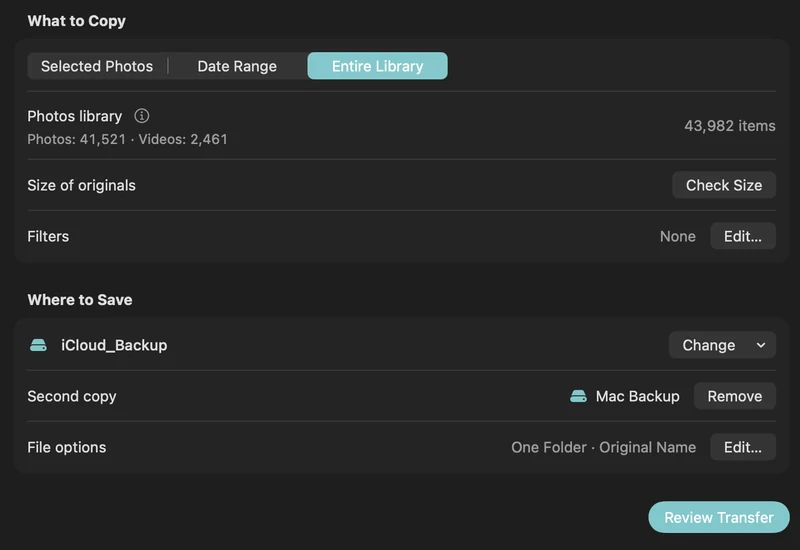
A simple 3-2-1 backup plan for your iCloud photo library
Protect a lifetime of photos with the 3-2-1 rule: three copies, two drives, one off-site. A practical Mac routine with iCloud Photos and PhotoCargo.
Read the guide

