 PhotoCargo
Moving the library
The Photos library on your Mac is a single package, usually in your Pictures folder. Apple’s guide for a Mac that has run out of space is to move it to an external drive and keep using it there. These are Apple’s steps:
- Quit Photos.
- In the Finder, choose Go › Home, open Pictures, and drag Photos Library to your external drive. The drive must be formatted as APFS or Mac OS Extended (Journaled).
- When the copy finishes, double-click the Photos Library on the drive to open it.
- If you use iCloud Photos, choose Photos › Settings › General and click Use as System Photo Library. iCloud Photos then syncs with the library on the drive.
- Only once Photos works from the drive, move the original library from Pictures to the Trash and empty it to reclaim the space.
ImportantApple says not to use a Time Machine backup drive, a removable device such as an SD card or USB flash drive, or anything shared over a network or the internet, including cloud storage. Keep the drive connected: if Photos can’t find it, it creates a new, empty library in Pictures.
What moving doesn’t do
- It is still one copy. If the drive fails, the library is gone, and with iCloud Photos a deletion still syncs everywhere.
- With Optimize Mac Storage on, the moved library may still hold only previews; the originals stay in iCloud until you switch to Download Originals.
- Photos must be running for your photos to be usable. The library package isn’t a folder of files you can hand to someone else or open on another system.
Backing up the originals
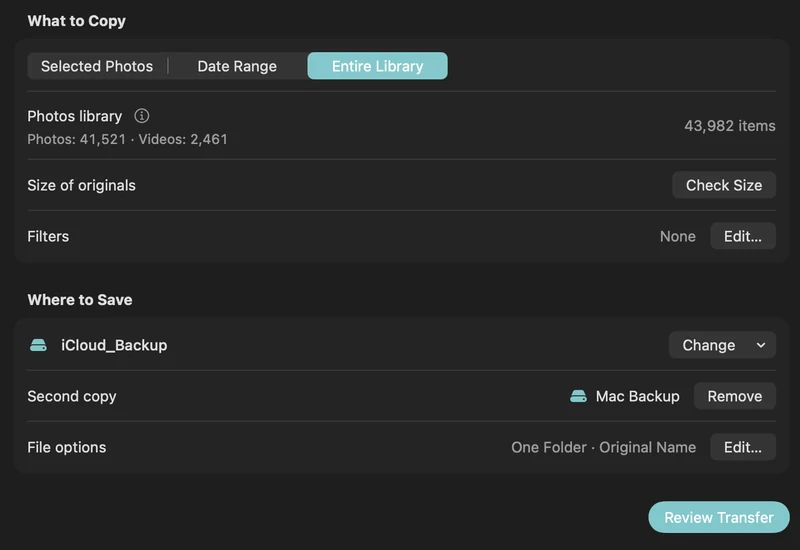
PhotoCargo doesn’t touch your library at all. It asks Photos for each original, downloads it from iCloud if needed, writes it to a folder on your drive as an ordinary file and verifies it. You end up with HEIC, JPEG, MOV and RAW files sorted into folders you chose, readable by computers and apps that support the drive and the relevant file formats.
- Connect an APFS drive and open PhotoCargo.
- Choose Entire Library, pick a folder on the drive and click Review Transfer, then Copy and Verify.
- Later, Find New Items adds what’s new; Verify Files re-checks the whole copy.
Which do you need?
| Move the library | PhotoCargo copy | |
|---|---|---|
| Frees space on your Mac | Yes | No; Photos may still use temporary Mac storage. |
| Keeps Photos editing, albums and faces | Yes | No: plain files |
| Protects against a failed drive or an accidental deletion | No | Yes, if kept on a separate drive |
| Contains full-resolution originals | Only with Download Originals | Yes; if an original is missing, you’re told under Needs Attention |
| Readable without Photos or a Mac | No | Yes |
Many people do both: the library lives on a fast SSD so Photos stays usable, and PhotoCargo keeps a verified archive of the originals on a second drive stored somewhere else.
Keep exploring
How to choose and format an external drive for your photo library
How much space you need, SSD or HDD, and how to format a drive as APFS in Disk Utility for backing up an iCloud Photos library on Mac.
Read the guide
Copy a large iCloud library with limited Mac storage
Plan a transfer larger than your Mac’s free space with on-demand originals, a free-space reserve and controlled download-ahead.
Read the guideA simple 3-2-1 backup plan for your iCloud photo library
Protect a lifetime of photos with the 3-2-1 rule: three copies, two drives, one off-site. A practical Mac routine with iCloud Photos and PhotoCargo.
Read the guide

